Version 3.5.0 · Free & open source
Screenshots, annotated
before you switch windows
A menu bar companion for macOS that captures, marks up, reads text, picks colours and measures pixels — without ever taking over your screen.
macOS 14.0 (Sonoma) or later · Apple silicon · MIT licence · No account, no telemetry
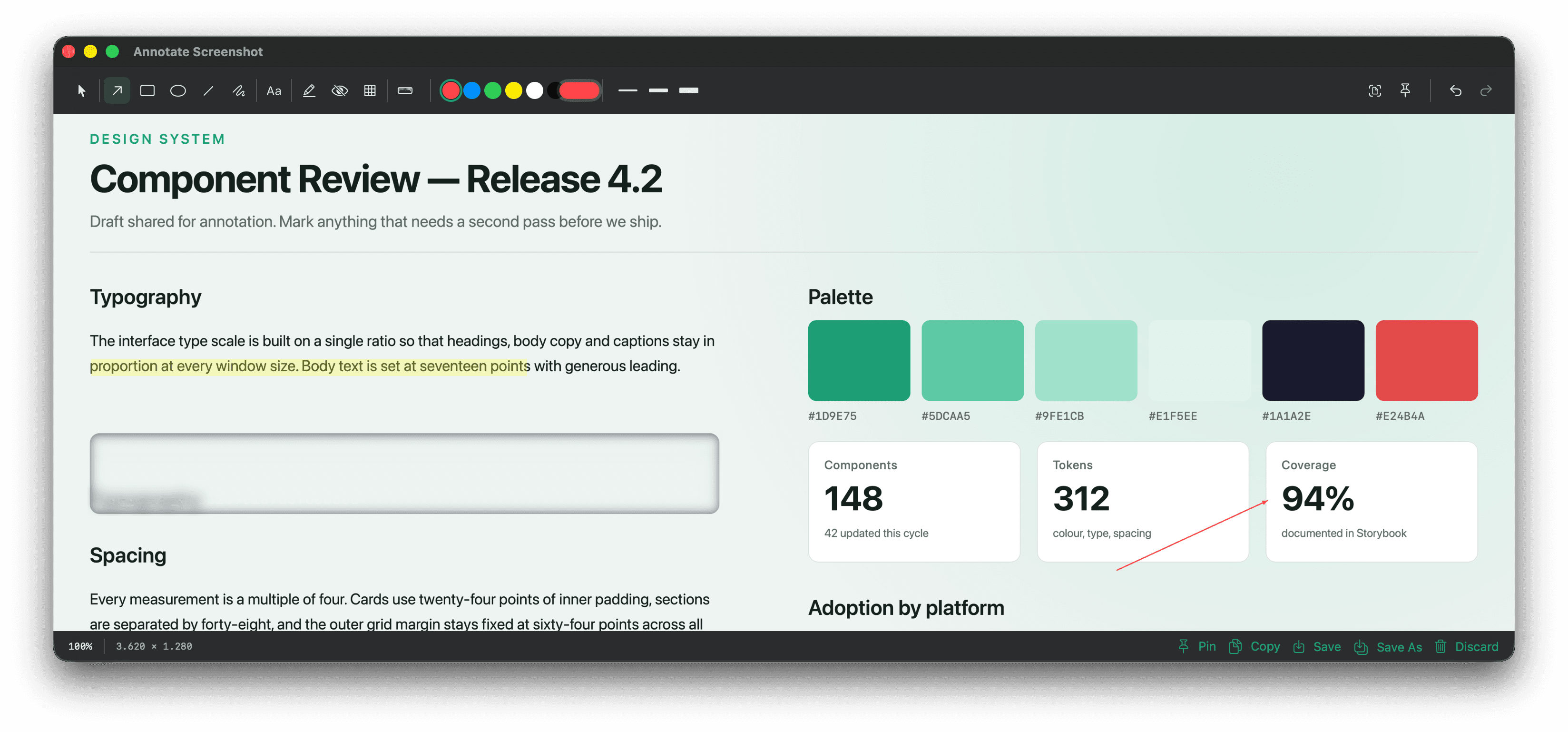
Everything a screenshot needs, in one pass
The editor opens the moment you capture. Mark it up, pull the text out of it, sample a colour, then copy or save — all before the thought leaves your head.
Three capture modes
Full screen, a dragged region, or a single window — each on its own global shortcut, straight from the menu bar. Point at the window you want, or take the frontmost one outright.
Eleven annotation tools
Arrow, rectangle, ellipse, line, freehand, text, highlight, blur, pixelate, selection and a ruler. Hold Shift to snap to 45°, squares and circles.
Text extraction
Drag over any region and the recognised text lands on your clipboard. Handles English, German and French.
Colour picker
A magnifying loupe follows the cursor at 8× zoom. Click to copy, Shift-click to keep it in a palette, with a history of the last ten.
Pixel measurement
A full-screen ruler with guide lines and point-to-point or rectangle modes. Also available inside the editor — and never exported.
Pinned screenshots
Float any capture above every other window. Scroll to fade it, Shift-drag to resize. Pins survive a restart.
Auto-save and history
Captures are filed away automatically. A searchable thumbnail browser is one shortcut away.
Yours to configure
Rebind every shortcut with conflict detection, set annotation defaults, choose the output folder and format, and launch at login.
Always within reach
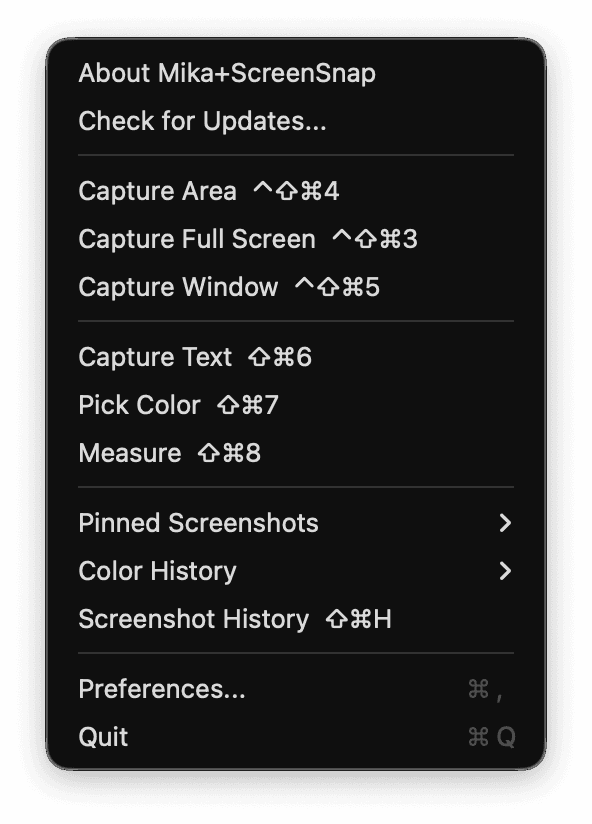
Lives in the menu bar, never in your way
No Dock icon, no window stealing focus, no app switcher clutter. Mika+ScreenSnap sits in the menu bar and every capture mode is one click or one shortcut away.
- Capture a region, the full screen, or a single window
- Jump straight to text extraction, the colour picker or the ruler
- Reach pinned captures, your colour history and the screenshot browser
- Optionally starts with you at login
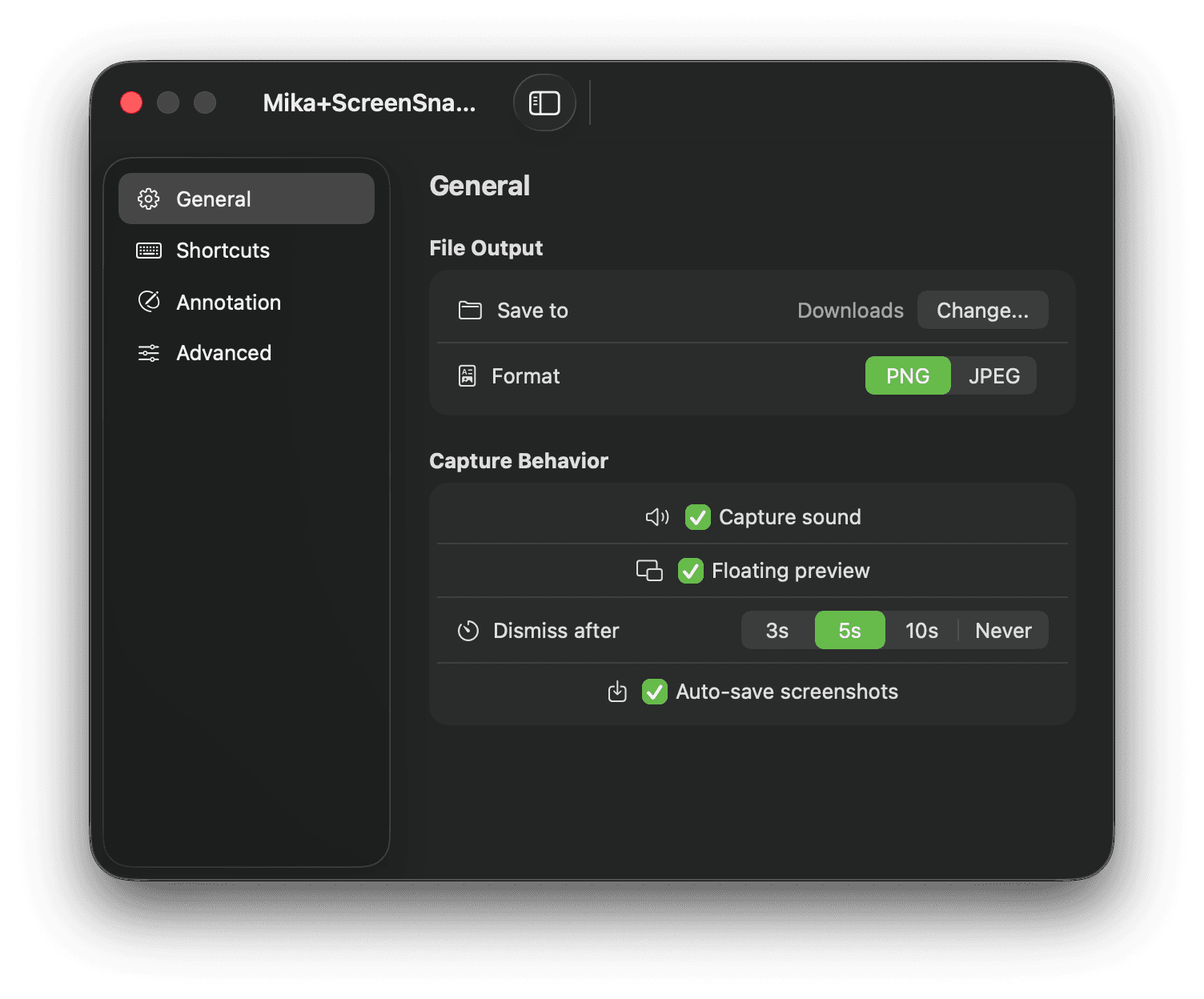
Yours to shape
Every shortcut and default, configurable
A four-tab settings window covers where files go, how captures behave, which tool and colour the editor starts with, and what each global shortcut is bound to — with conflict detection built in.
- Rebind all seven global shortcuts, or restore the defaults
- Choose the output folder and PNG or JPEG with a quality setting
- Set the editor's default tool, stroke colour and stroke width
- Manage stored screenshots and reset the app from one place
Built for the keyboard
Seven global shortcuts reach every capture mode from anywhere in macOS. Inside the editor, each tool sits on a single letter. Every binding can be changed in Settings.
Anywhere in macOS
- Capture a region⌃⇧⌘4
- Capture the full screen⌃⇧⌘3
- Capture the frontmost window⌃⇧⌘5
- Extract text (OCR)⇧⌘6
- Pick a colour⇧⌘7
- Measure⇧⌘8
- Screenshot history⇧⌘H
In the editor
Up and running in a minute
Version 3.5.0 ships as a plain DMG on GitHub. No installer, no account, no background services.
Prefer to build it yourself? The full source and build scripts are in the repository.
- 1
Download and drag to Applications
Open the DMG and drop Mika+ScreenSnap into your Applications folder.
- 2
Open it the first time with a right-click
The app is not notarised by Apple yet, so Gatekeeper stops the usual double-click. Right-click the app, choose Open, and confirm. If macOS still refuses, allow it under System Settings › Privacy & Security. You only do this once.
- 3
Grant screen recording, then pick your shortcuts
macOS asks for the Screen & System Audio Recording permission — that is what lets any app read the screen. A short onboarding walks you through the rest.
Questions, answered
What does it cost?
Nothing. Mika+ScreenSnap is free and open source under the MIT licence. There is no account, no subscription and no telemetry.
Why does macOS warn me when I open it?
The app is not yet notarised by Apple, so Gatekeeper blocks it on first launch. Right-click the app in Applications and choose Open, then confirm — or allow it under System Settings › Privacy & Security. macOS remembers your choice.
Why does it need screen recording permission?
Taking a screenshot means reading the contents of your screen, which macOS gates behind the Screen & System Audio Recording permission. It is the only permission the app asks for.
Where do my screenshots go?
They stay on your Mac. Captures are auto-saved to a folder you choose (Pictures by default) and nothing is ever uploaded — the app has no backend.
How do updates work?
The app checks a release feed hosted on GitHub using Sparkle and can install updates in place. You can also just download the latest DMG from the releases page.
Does it show up in the Dock?
No. It lives in the menu bar and stays out of the Dock and the app switcher, so it never interrupts what you are doing.
Take a screenshot worth sending
Free, open source, and under two megabytes to download. Nothing leaves your Mac.
macOS 14.0 (Sonoma) or later · Apple silicon